Is Your CPU or GPU Holding Back Your PC? The Complete Bottleneck Guide
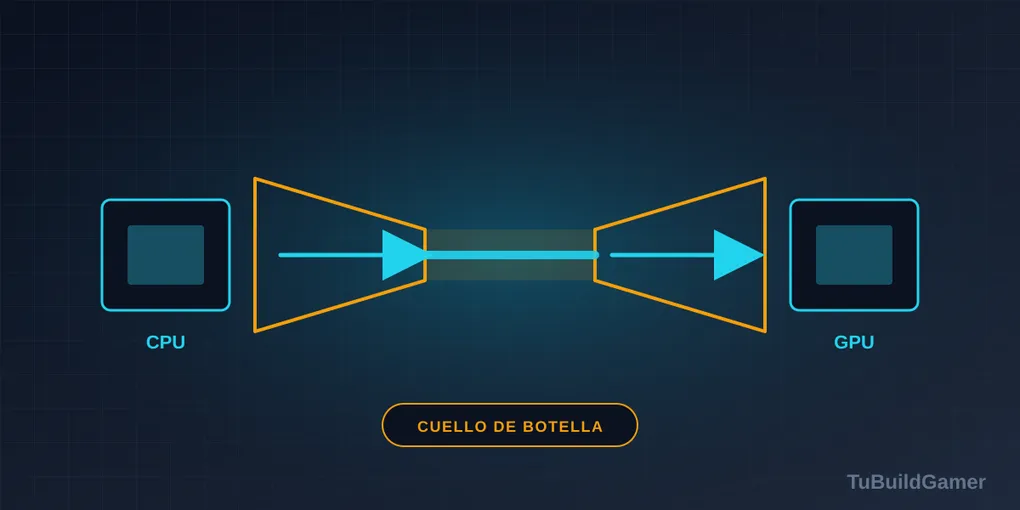
A PC bottleneck happens when one component (almost always the CPU or the GPU) can’t keep up with the rest, so the whole system performs at the level of the slowest piece instead of taking advantage of the fastest one. It’s one of the most-searched performance issues among people building or upgrading a PC. If you bought a powerful graphics card and your FPS didn’t rise as much as you expected, or your CPU is sitting at 100% while the GPU idles at 60%, you likely have one. Here’s how to detect it, whether a CPU or GPU bottleneck matters more in your case, and when it’s actually worth doing something about.
What is a bottleneck on a PC?
The CPU handles game logic, physics, enemy AI behavior, and the draw calls that tell the GPU what to render. The GPU just paints the pixels. If the CPU takes longer to prepare the next frame than the GPU takes to draw it, the GPU ends up waiting — that’s essentially a bottleneck: any situation where one component limits the performance of the rest of the system, even if the rest has plenty of power left to give.
CPU bottleneck vs GPU bottleneck: which one is worse?
Not every bottleneck feels the same. A CPU bottleneck and a GPU bottleneck have different symptoms and a different level of severity depending on what you play.
CPU bottleneck — symptoms:
- Low, inconsistent FPS even with the GPU not hitting 100%.
- Frame stutters in scenes with lots of characters, explosions, or complex AI (open-world cities, big strategy-game battles).
- Most noticeable at 1080p and in competitive games with high FPS targets (Valorant, CS2, Fortnite).
GPU bottleneck — symptoms:
- GPU consistently at 95-100% while the CPU has plenty of headroom.
- Stable FPS, but lower than what the card’s spec sheet promises.
- Most noticeable at 1440p/4K, and with ray tracing or ultra-quality textures enabled.
Which one is worse? In practice, a GPU bottleneck is almost always preferable: it means you’re using your graphics card at full capacity, which is exactly what you paid for. A CPU bottleneck tends to be more frustrating, because it wastes the money you spent on the GPU — you have graphics power your processor won’t let you use.
How to detect a bottleneck
Detecting a bottleneck doesn’t require specialized software or deep technical knowledge — any performance monitor shows it in seconds while you play.
With MSI Afterburner
MSI Afterburner (free, works with any GPU brand) is the most complete tool: install it alongside RivaTuner Statistics Server, turn on the on-screen overlay, and watch two numbers while you play — GPU usage (%) and per-core CPU usage (%). If the GPU stays near 95-100% and no CPU core is maxed out, the GPU is the limit. If you see a CPU core at 100% while the GPU drops below 90%, the processor is the limit.
With Windows Task Manager
If you’d rather not install anything, Windows Task Manager (Ctrl+Shift+Esc) also works as a quick reference: open the Performance tab while the game runs in borderless windowed mode, and compare the CPU and GPU graphs. It’s less precise than Afterburner — it doesn’t break down individual cores as well — but it’s free, already installed, and enough for a quick read.
With either tool, the reading is the same:
- GPU at 95-100% and CPU below 80%: your graphics card is the limit. That’s normal and desirable — it means you’re getting what you paid for out of it.
- A CPU core at 100% and GPU below 90%: the processor is the limit. The GPU could push more frames, but the CPU isn’t feeding it instructions fast enough.
- Both below 90%: the limit is probably elsewhere — not enough RAM, a slow SSD loading textures, or an FPS cap active in the game or on your monitor.
Bottleneck calculators: are they worth it?
Searching for a “bottleneck calculator” is one of the most common ways people land on this topic, so it’s worth being honest about how useful they actually are. These tools give a quick reference estimate, not a real diagnosis, because they cross-reference generic benchmark databases for your CPU and GPU without accounting for:
- The resolution you actually play at — the same CPU-GPU pair behaves very differently at 1080p than at 4K.
- The specific graphics settings of the game you’re playing.
- Whether you use DLSS, FSR, or frame generation, which shift the workload between components.
Use them only as a first filter — for example, to rule out an obviously mismatched combination (a Core i3 with an RTX 5080) before buying. For a real diagnosis of your own system, there’s no substitute for measuring with Afterburner or Task Manager while playing the specific title you care about.
Watch the 1% low, not the average
Here’s the most common measurement mistake, and it explains why plenty of people “don’t see” their bottleneck even while suffering from it.
Average FPS hides exactly the problem a CPU bottleneck causes. You can have a 90 FPS average and a worse experience than someone at a steady 70, because what feels like stutter isn’t the average — it’s the momentary drops.
The number to watch is the 1% low: performance across the worst 1% of frames. Both Afterburner and Steam’s own overlay display it.
- High average with a 1% low close to it (90 / 75, say): balanced system. It feels smooth.
- High average with a 1% low far below (90 / 35): you have stutter even though the counter says 90. It’s almost always the CPU, and almost always in busy scenes.
If you measure one thing after reading this, make it the 1% low in the most crowded area of your game, not in an empty corridor.
Why a little bottleneck is normal
A 10-20% imbalance is completely normal in 2026 and almost never noticeable in actual gameplay. Chasing a perfectly balanced CPU and GPU usually leads to unnecessary spending; the real goal is making sure no component holds the other back enough that you feel it in FPS or smoothness.
When it actually matters (by resolution)
- At 1080p: the CPU matters more, because the GPU has fewer pixels to draw and depends on the processor feeding it work quickly. This is the resolution where a weak CPU paired with a strong GPU shows the most.
- At 1440p: the load balances out. The GPU does more of the work, but the CPU still matters for frame consistency.
- At 4K: the GPU is almost always the limit. Card power and VRAM matter far more than the CPU at this resolution.
If you’re building for competitive 1080p (Valorant, CS2), prioritize the CPU. If you’re going 1440p or 4K with AAA titles, prioritize the GPU and its VRAM — check our guide on how much VRAM you need in 2026 so you don’t come up short there either.
How to avoid it when picking parts
- Match CPU tier to GPU tier, not necessarily price. A mid-range CPU (Ryzen 5 / Core Ultra 5) pairs well with a mid-to-high-range GPU if you’re gaming at 1440p or above; for competitive 1080p, weight your budget more toward the CPU relative to the GPU.
- Don’t ignore RAM: less than 16GB, or slow RAM, can mimic a CPU bottleneck even with a good processor. Our guide on how much RAM you need for gaming covers recommended amounts by game type.
- Check our budget PC builds ($500, $800, and high-end) — all three are already balanced to avoid obvious bottlenecks at their target resolution.
- If you’re only upgrading one part, ask yourself what resolution you actually play at first — that decides whether the CPU or the GPU is the smarter upgrade.
What to do if you already have one (without buying anything)
Everything above is for people who are about to buy. If your machine is already built and you’ve just diagnosed a bottleneck, here’s what you can do today, for free:
If the CPU is the limit:
- Raise the resolution or the graphics settings. It sounds backwards, but it works: loading the GPU more shifts the limit onto it and you gain smoothness even if the average dips slightly. It’s the fastest fix and it costs nothing.
- Lower the settings that depend on the processor, which are almost never the ones people touch: population and NPC density, draw distance, physics, dynamic shadows. Textures and antialiasing are GPU work, and turning them down won’t help here.
- Enable XMP/EXPO in the BIOS. A surprising share of machines run their RAM at base speed without the owner knowing, and that mimics a CPU bottleneck. Steps in how much RAM you need.
- Close what’s running in the background. Browsers with many tabs, overlays and RGB software all compete for the same cores.
If the GPU is the limit: congratulations, that’s the desirable state. If you still want more frames, turn on DLSS, FSR or XeSS before lowering quality — they cut the graphics load with far less visual impact than dropping settings.
If neither reaches 90%: check the game’s FPS cap, vertical sync, and whether you have a limit set in the driver panel. It’s the most common cause of “I can’t hit my monitor’s refresh rate” and has nothing to do with your hardware.
Frequently asked questions
Does a bottleneck damage my PC? No. It’s a performance issue, not a safety or hardware lifespan issue.
Can I fix it without buying anything new? Sometimes: lowering CPU-heavy graphics settings (crowd density, draw distance), enabling your OS’s performance mode, or simply updating drivers and BIOS can reduce the imbalance.
Is a CPU or GPU bottleneck more common on laptops? CPU bottlenecks are, because many laptops use low-power processors to preserve battery life, paired with relatively strong GPUs. If that’s your situation, check our gaming laptop guide for already-balanced models.
Sources: TechSpot – Radeon RX 9060 Review, Tom’s Hardware – Radeon RX 9060 XT 16GB Review, TuBuildGamer’s internal component performance guides. Published July 20, 2026.